Webex Meetings
- 4.5
- Rating
- 100.00M
- Installs
- Free
- Price

 Analysis by App-foxy
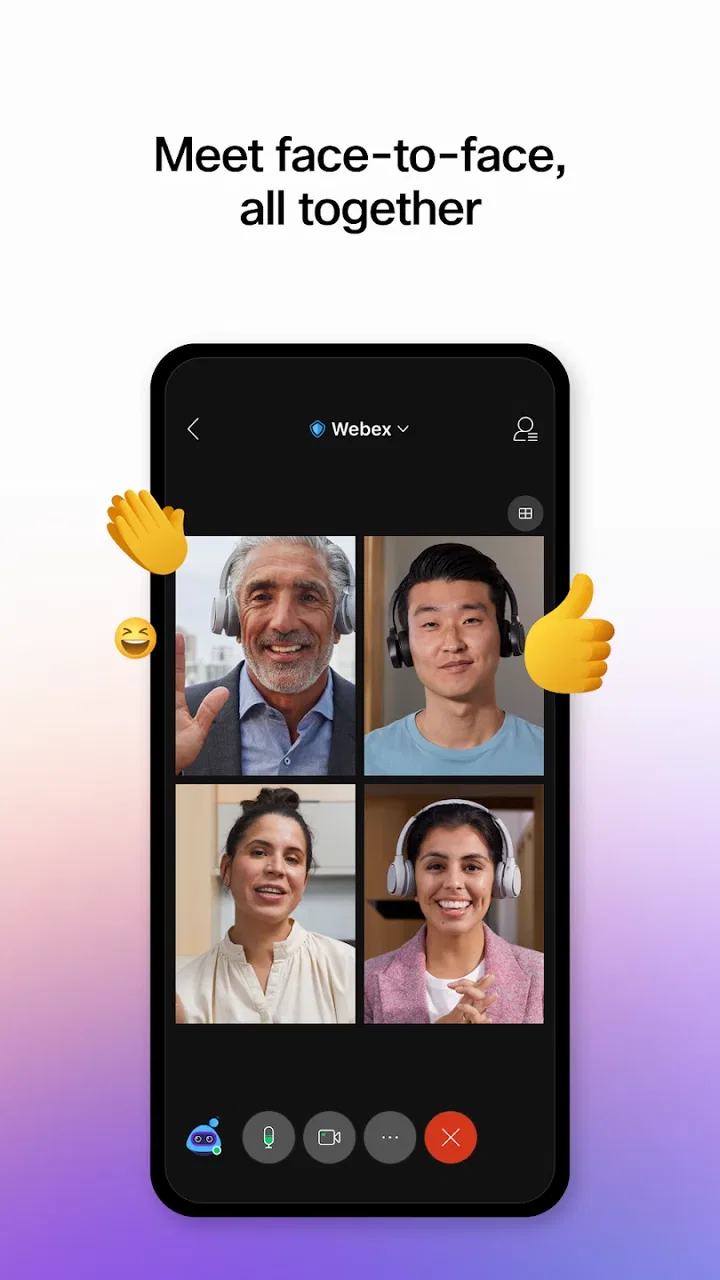
When I need to join a work call away from my desk, Webex Meetings feels designed around one simple reality: the meeting is only as good as the connection carrying it. Cisco Systems, Inc. has built this Business app for Android and PWA use on Chrome OS, and in my experience its strongest quality is not flashy presentation but the way it lets a scheduled conversation continue across different places and devices.
It is free, rated for Everyone, and has been available since February 9, 2011. The app has earned a 4.5 average from around 2.2 million ratings, with more than 100 million installs. Those figures suggest a mature meeting tool rather than a small experiment, but popularity does not remove the practical questions: how does it behave when the signal changes, is it comfortable on a phone, and what happens when joining a call is less than smooth?
How Webex Meetings handles real-world connectivity
I treat connectivity as part of the meeting setup, not something to troubleshoot only after people are waiting. In this section, I’ll look at how Webex Meetings fits into a call when the signal, device, or surroundings change, and why choosing an audio-first fallback can keep a useful conversation moving. That leads naturally to the practical preparation that makes joining from a phone less stressful.
You May Also Like

 AccuWeather: Weather Radar
AccuWeather Review: A Quick, Clear Forecast for Everyday Decisions
For everyday plans, the best forecast is the one you can understand quickly. AccuWeather makes rain timing, radar, and local conditions easy to act on, with a few trade-offs.

 Hill Climb Racing
Why Hill Climb Racing Still Turns Crashes Into One More Run
A tiny car, a bumpy hill and one more upgrade: Hill Climb Racing keeps resurfacing because its simple chaos makes every near-miss feel personal.

 AliExpress - Shopping App
AliExpress Makes Global Shopping Feel Personal, but Shoppers Bear the Risk
AliExpress turns a global marketplace into a pocket-sized discovery engine. Its reach is useful, its shopping loop compelling, and its trade-offs easy to miss.

 Lords Mobile: Kingdom Wars
Lords Mobile Is a Kingdom-Building Routine, Not a Quick Match
A case-by-case verdict on the building, battles, device demands, and social commitments that make Lords Mobile rewarding for some players and exhausting for others.

 PDF Scanner app - TapScanner
TapScanner Makes Paperwork Easier to Capture, Check, and Share
TapScanner makes scanning with a phone feel less like a rescue operation and more like a dependable step in getting work done. Its capture tools are useful, though not flawless.

 Block Blast!
Block Blast! Shows How Much a Puzzle Game Can Leave Out
A quiet grid game shows why puzzle players increasingly value instant clarity, repeatable skill and low-pressure play—and where the genre still needs to catch up.
More From Our News Desk
View All News


The meeting starts with the network, not the app
The first thing I notice with any mobile meeting service is how much of the experience depends on preparation. A strong connection makes Webex Meetings feel straightforward: open the invitation, enter the meeting, check the camera and microphone, and concentrate on the people rather than the controls. A weak or crowded connection changes that balance quickly. Video can become the first thing I would sacrifice, because clear audio is usually more important than seeing every face.
That makes the app a good fit for planned work calls, interviews, classes, and team check-ins where I can choose a reasonably stable place. It is less comfortable for an important conversation started while moving between locations. A phone may show a strong signal and still struggle with congestion, handoffs between networks, or other traffic on the same connection. Webex cannot turn an unreliable connection into a reliable one, so the best results come from treating connectivity as part of meeting preparation.
I also prefer joining a few minutes early when the call matters. That gives me time to discover whether the selected microphone is actually the one I want, whether the camera view is usable, and whether the current connection is stable enough for video. This is a small habit, but it prevents the familiar situation where the first several minutes of a meeting are spent asking whether someone can hear me.
Why mobile access is genuinely useful
The Android version makes sense for people whose work does not stay in one room. I can imagine using it from a waiting area, a quiet corner of a shared office, or a hotel room when a laptop is packed away. The phone is always close, and that reduces the friction of responding to a last-minute invitation. The Chrome OS PWA option also matters for users who work on a Chromebook and want a browser-oriented meeting experience rather than treating a phone as their only mobile device.
Phone meetings require more discipline than desktop meetings. A small screen gives me less room to inspect participants, follow shared material, and manage controls without covering part of the conversation. I would use a headset whenever possible, especially in public, because the phone’s speaker can make a private business call awkward and can introduce distracting echo. I would also keep the device steady rather than holding it at arm’s length; a stable camera makes a noticeable difference to everyone else.
There is a trade-off between mobility and attention. Joining from a phone can save a meeting, but it also makes it tempting to walk, answer notifications, or divide attention between the call and the surrounding environment. For a quick status update, that may be acceptable. For a detailed presentation or a sensitive discussion, I would choose a larger screen and a quieter setting.
A practical mobile scenario
Imagine I am leaving the office when a colleague schedules a short decision meeting. I have my Android phone, earbuds, and a few minutes before reaching public transport. I would join from a stationary place, turn off video if the surroundings are distracting, and check the microphone before speaking. If the connection begins to deteriorate, I would prioritize audio and avoid repeatedly changing settings while other people are waiting.
That workflow shows where Webex Meetings earns its place. It is not merely a smaller copy of a desktop meeting; it is a way to remain reachable when the normal workstation is unavailable. At the same time, the scenario exposes its limit: if I am about to enter a noisy or unstable environment, joining immediately may be worse than sending a message and finding a better moment.
What happens when the connection falters
Connection problems are rarely dramatic at first. A voice may sound clipped, a video image may pause, or a shared explanation may become difficult to follow. The important skill is recognizing the difference between a temporary interruption and a setup problem. If only my video is struggling, turning the camera off can preserve the conversation. If my audio is unclear, I would check whether I am too far from the phone, whether a headset is behaving properly, and whether another application is consuming the connection.
I find it helpful to change one thing at a time. Switching from a busy public connection to a more stable one may help, but changing microphone, camera, and network settings simultaneously makes it hard to know what solved the issue. If I leave and rejoin, I would do it deliberately rather than repeating the action several times. A meeting host or colleague can often continue the discussion while I recover, so a short explanation in the chat or by another channel is more useful than silently disappearing.
Recovery also depends on the meeting’s importance. For a casual internal check-in, audio-only participation is a sensible fallback. For a presentation where visual material is central, a phone may no longer be enough once the connection becomes unstable. In that situation, I would move to a stronger network or switch to a computer if available. The app is valuable because it gives me another route into the meeting, not because it eliminates every failure point.
Preparing for interruptions before they happen
A useful routine is to identify the nearest quiet place before accepting a mobile meeting. I would avoid elevators, underground areas, crowded cafés, and locations where I know the phone will constantly move between signal sources. I would also keep the device charged and avoid covering its microphone with a hand or case while speaking. None of these steps is a special Webex feature, but they directly affect how well the app can carry the conversation.
For recurring meetings, I would use the same preparation each time: open the invitation early, check the meeting identity, test the audio, and decide whether video is necessary. This reduces cognitive load when the meeting begins. It also helps separate an app problem from an environmental problem. If Webex works well in a quiet location but not on a crowded connection, the solution is probably a change of place or network rather than reinstalling the app.
Being careful with mobile data
Video meetings can use a meaningful amount of mobile data, so I would not treat cellular access as unlimited simply because the app is free. The price of the app and the cost of connectivity are separate issues. If I am away from Wi-Fi, I would consider whether video adds enough value for that particular call. Audio can be the sensible choice for a short update, especially when everyone is mainly discussing a document or making a decision.
I would also avoid joining a long meeting casually while travelling if I am unsure about my data allowance. A stable Wi-Fi connection is usually preferable, but public networks deserve judgment too. A connection can be available and still be overloaded or unsuitable for confidential work. For business conversations, I would choose a network I trust rather than automatically selecting the strongest visible signal.
Another practical tip is to close unrelated activity before joining. Streaming, large downloads, automatic backups, and multiple active devices can compete for the same connection. Reducing that competition may improve the meeting without changing anything inside Webex. If the call is important, I would rather prepare the network for it than hope the phone will manage everything in the background.
How it compares with ordinary alternatives
Compared with a traditional phone call, Webex Meetings is better when the group needs shared visual context, faces, or a structured online meeting space. A normal call is simpler and often more forgiving when bandwidth is limited, but it does not offer the same meeting-oriented experience. I would choose the phone for a quick one-to-one conversation where video and shared material are unnecessary.
Compared with joining from a desktop browser or computer, the Android app wins on availability. It is easier to carry and useful when a laptop is not nearby. The computer remains better for long sessions, detailed shared content, note-taking, and situations where I need to see several things at once. The Chrome OS PWA option gives Chromebook users a middle ground, but a small phone screen still has a different rhythm from a full workstation.
Compared with other mobile meeting apps, the decision is less about whether Webex can replace every alternative and more about where the people I need to meet already work. If a team relies on Cisco’s meeting environment, using the matching app can reduce confusion around invitations and joining. If my contacts are committed to another platform, installing Webex only for occasional calls may add another account and workflow to manage. I would choose the tool that fits the group’s existing habits rather than collecting apps based on feature lists alone.
Who should use it, and who should think twice?
I would recommend Webex Meetings to remote employees, consultants, students, managers, and anyone who regularly needs to join organized work conversations from more than one location. It is especially useful for people who want an Android option but also use Chrome OS, because the app and PWA approach cover two common mobile-work situations. Its long availability and broad adoption make it feel like a dependable candidate for regular meeting use.
I would be more cautious if I mainly need spontaneous, low-bandwidth voice calls, because a simpler calling method may involve less setup. I would also hesitate to rely on a phone for confidential or visually demanding meetings if I cannot control the surrounding environment. People with inconsistent connectivity should not expect the app alone to solve that problem. In those cases, a stable desktop setup or an audio-first workflow may be a better choice.
Small habits that improve the experience
- Protect the audio first: use a headset when the environment is noisy and treat video as optional when the connection is under pressure.
- Join early for important calls: use the extra moment to check the microphone, camera framing, and current network rather than troubleshooting in front of the group.
- Match the device to the task: use Android for mobility and quick access, but prefer a larger screen when the meeting involves detailed visual material or extensive note-taking.
- Plan a recovery path: know whether you can move to a quieter place, change networks, or continue with audio before the meeting begins.
- Respect the data connection: do not assume that a free app makes a long cellular video meeting free to run.
My connectivity verdict
After looking at Webex Meetings through the lens of real mobile use, I see it as a practical business companion rather than a substitute for good meeting conditions. Its value is clearest when I need to join from an Android phone or Chrome OS device and the conversation already belongs in a professional meeting environment. The free price and Everyone age rating make it approachable, while its 4.5 average and more than 100 million installs show that it has reached a large audience.
My recommendation comes with a clear condition: prepare the connection and choose the right format for the situation. On a stable network, Webex Meetings can make remote work feel much less tied to a desk. On an unreliable connection, it rewards sensible compromises such as audio-first participation and an early check. If you need a dependable way to stay present when your location changes, I think it is worth trying. If your priority is the simplest possible voice call or a fully desktop-focused workspace, another option may suit you better.
In short, I would keep it installed for work because the mobile escape route is genuinely useful. I would not mistake that convenience for immunity from signal problems, crowded networks, or the limitations of a small screen. The best experience comes from using Webex Meetings as part of a connectivity plan, not as a replacement for one.
FAQs for Webex Meetings
01What are the key features of Webex Meetings?
Webex Meetings offers a range of features designed to enhance virtual collaboration. These include HD video conferencing, screen sharing, customizable meeting layouts, and real-time chat. Additionally, the app supports integration with calendar apps for easy scheduling and provides robust security measures to ensure privacy and data protection during meetings.
02Is Webex Meetings free to use?
Webex Meetings offers a free plan that includes basic features like hosting meetings with a limited number of participants and a 50-minute meeting limit. For advanced features such as larger participant capacity, longer meeting durations, and additional administrative controls, a subscription to one of the paid plans is required.
03What devices are compatible with Webex Meetings?
Webex Meetings is compatible with a wide range of devices, including Android and iOS smartphones and tablets, as well as Windows and macOS computers. This cross-platform compatibility ensures that users can join meetings seamlessly from almost any device, enhancing accessibility and convenience.
04How secure is Webex Meetings?
Webex Meetings prioritizes user security with features like end-to-end encryption, secure meeting recordings, and password-protected sessions. The app also offers options for meeting hosts to control participant access and permissions, ensuring a secure environment for all attendees. Regular updates further enhance security protocols.
05Can I record meetings in Webex Meetings?
Yes, Webex Meetings allows users to record their meetings. The recorded sessions can be stored in the cloud or locally on your device, depending on your subscription plan. This feature is particularly useful for those who need to revisit discussions or share the session with participants who could not attend.
Pros
- High-quality video and audio streaming.
- User-friendly interface with easy navigation.
- Excellent integration with other tools.
- Secure and reliable connection.
- Offers free plan with limited features.
Cons
- Limited features in free version.
- Occasional audio lag in large meetings.
- Requires stable internet for best performance.
- No breakout rooms in free plan.
- Mobile app lacks some desktop features.

Webex Meetings
Gallery